Audience
This article is for EasySIGN users and administrators who use EasySIGN Compatibility with CorelDRAW and no longer see the green Export to EasySIGN or Compatibility icon after installing or updating EasySIGN.
Primary use cases
Use this article when:
• CorelDRAW starts, but the EasySIGN Compatibility function does not work.
• The green Export to EasySIGN or Compatibility icon is missing from the Windows taskbar or system tray.
• EasySIGN was installed or updated while CorelDRAW was already installed.
• CorelDRAW was installed, reinstalled, updated, or repaired after EasySIGN.
• The EasySIGN Compatibility shortcut is not easy to find.
• You need to check whether the Compatibility icon is hidden in Windows taskbar settings.
Customer scenario
After installing or updating EasySIGN, CorelDRAW opens normally, but the green EasySIGN Compatibility icon does not appear in the Windows taskbar or system tray.
This can happen when the Compatibility program has not been started yet, when Windows hides the tray icon, or when CorelDRAW and EasySIGN were installed in the wrong order.
Summary
For EasySIGN Compatibility with CorelDRAW, the installation order is important.
CorelDRAW should be installed before EasySIGN.
If CorelDRAW is installed, reinstalled, updated, or repaired after EasySIGN, reinstall EasySIGN afterwards. This allows EasySIGN to install and register the required CorelDRAW Compatibility components.
The green Compatibility icon may also be hidden in the Windows system tray. Check the hidden icons arrow and Windows taskbar settings before reinstalling.
1. Why the Compatibility icon may be missing
The green EasySIGN Compatibility icon may be missing for one of these reasons:
• The Compatibility program has not been started yet.
• Windows is hiding the icon in the system tray.
• The icon is turned off in Windows taskbar settings.
• CorelDRAW was installed, reinstalled, updated, or repaired after EasySIGN.
• EasySIGN was not reinstalled after a CorelDRAW change.
• The required CorelDRAW Compatibility components were not created correctly during installation.
2. Check whether the icon is hidden in the Windows system tray
First check whether the icon is only hidden.
- Look at the Windows taskbar.
- Click the hidden icons arrow near the system tray.
- Check whether the green EasySIGN CorelDRAW Compatibility icon is listed there.
- If the icon is visible there, drag it to the taskbar or enable it in Windows taskbar settings.
- If the icon is not visible, continue with the next steps.
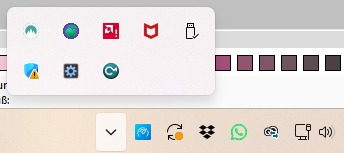
Example: the EasySIGN CorelDRAW Compatibility icon may be hidden in the Windows system tray or may not appear until the Compatibility program has been started.
3. Check Windows taskbar settings
Windows can hide system tray icons even when the program is available.
- Open Windows Settings.
- Go to Personalization.
- Open Taskbar.
- Open Other system tray icons.
- Look for an EasySIGN or CorelDRAW Compatibility entry, for example a 64-bit CDR entry.
- Turn the icon on if it is available.
The exact name can depend on the CorelDRAW version and the installed Compatibility component.
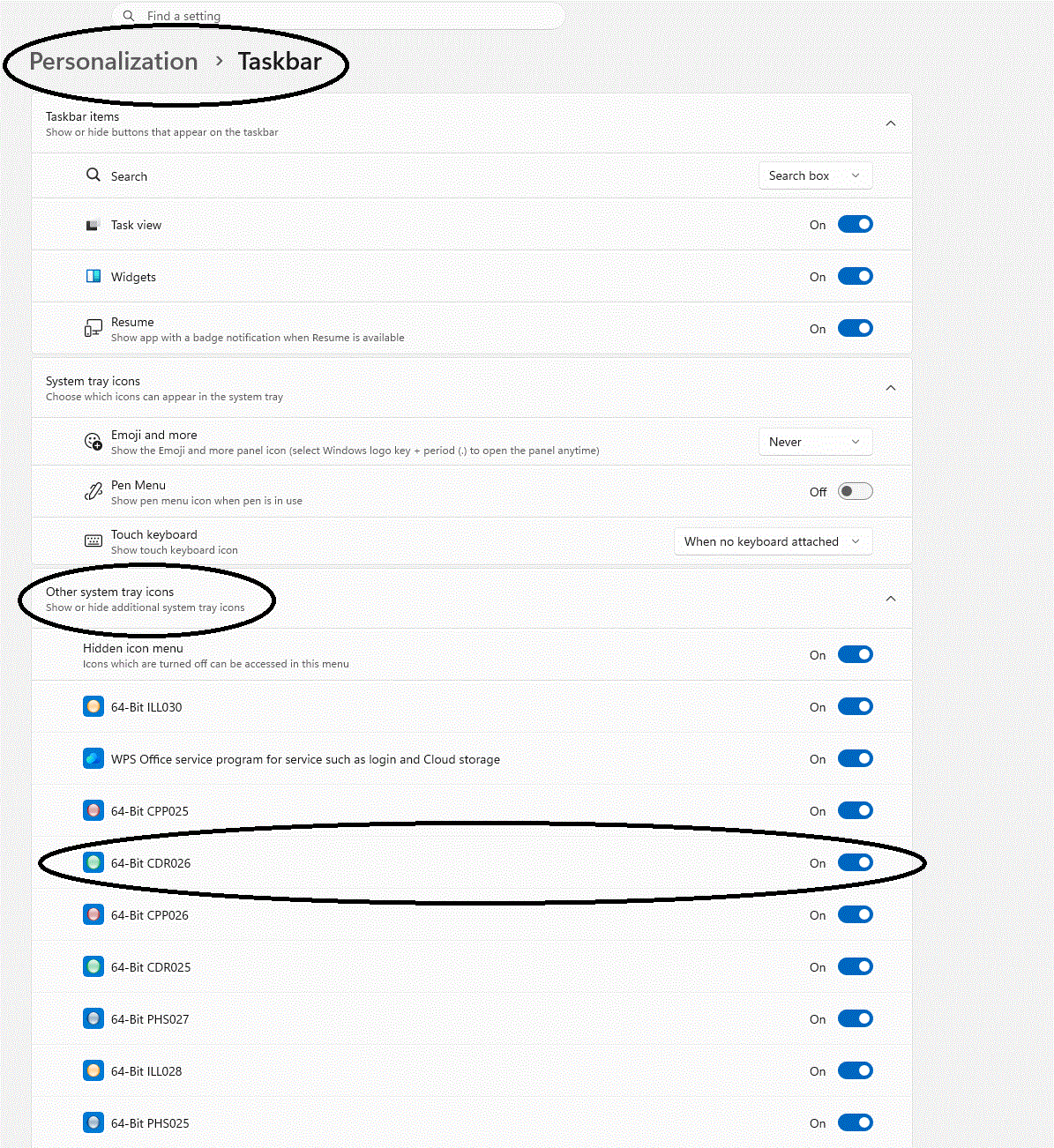
Example: Windows Settings > Personalization > Taskbar > Other system tray icons. A CorelDRAW Compatibility icon such as 64-Bit CDR026 may need to be enabled here.
4. Start the Compatibility program
The green Compatibility icon may only appear after the Compatibility program has been started.
You can start the Compatibility program from:
• EasySIGN, when the Compatibility function is available from your EasySIGN workflow.
• The Windows Start Menu folder Compatibility 64-bit.
After starting the Compatibility program, check the Windows system tray again.
If the icon appears, enable it in the taskbar if needed.
5. Check the installation order
For the CorelDRAW Compatibility function, use this installation order:
- Install CorelDRAW first.
- Install EasySIGN afterwards.
This order is important because EasySIGN installs the Compatibility components for the CorelDRAW version that is present on the PC.
If CorelDRAW is installed, reinstalled, updated, or repaired after EasySIGN, reinstall EasySIGN afterwards.
6. Reinstall in the correct order
Use this procedure when the Compatibility function still does not work.
Step 1: Uninstall EasySIGN and CorelDRAW
- Close EasySIGN and CorelDRAW.
- Uninstall EasySIGN.
- Uninstall CorelDRAW.
- Restart Windows if requested.
Step 2: Install CorelDRAW first
- Install CorelDRAW.
- Complete the CorelDRAW installation.
- Restart Windows.
Step 3: Install EasySIGN again
- Install the latest EasySIGN version available for your license.
- Complete the EasySIGN installation.
- Start EasySIGN.
- Start the CorelDRAW Compatibility function.
- Check the Windows system tray for the green Compatibility icon.
Step 4: Test the Compatibility function
- Open CorelDRAW.
- Start the EasySIGN Compatibility function.
- Check whether the green Compatibility icon appears.
- Test whether the Export to EasySIGN workflow works.
In the confirmed support case, reinstalling in this order solved the issue.
7. Advanced checks for administrators
Use these checks only if the normal reinstall sequence does not solve the issue.
These paths are provided as administrator checks. They are not universal guarantees for every CorelDRAW version.
Check the EasySIGN Compatibility folder
For CorelDRAW 2026, the Compatibility folder may be:
C:\ProgramData\EasySIGN\Shared 64-bit\Compatibility\CDR027
In that folder, check whether this file exists:
CDRSTART027.exe
The number in the folder name can depend on the CorelDRAW version. Do not assume that CDR027 applies to every CorelDRAW version.
Check the Windows Start Menu shortcuts
The EasySIGN Compatibility shortcuts may be located under:
C:\ProgramData\Microsoft\Windows\Start Menu\Programs\Compatibility 64-bit
Check whether the relevant Compatibility shortcut is available there.
Check the CorelDRAW GMS integration file
EasySIGN installs a CorelDRAW integration file named:
EasySIGN.gms
This file is installed in the CorelDRAW Draw\GMS folder.
The file contains the required VBA scripts for communication between CorelDRAW and EasySIGN.
If Compatibility still does not work after reinstalling in the correct order, an administrator or support technician can check:
• Whether EasySIGN.gms is present in the CorelDRAW Draw\GMS folder.
• Whether the GMS folder permissions allow the integration to work.
Do not delete or manually edit these files unless EasySIGN support specifically instructs you to do so.
8. Validation
The issue is solved when:
• The CorelDRAW Compatibility program starts.
• The green EasySIGN Compatibility icon appears in the Windows system tray or can be enabled in taskbar settings.
• The Export to EasySIGN workflow works from CorelDRAW.
• EasySIGN and CorelDRAW communicate as expected.
• The Compatibility function continues to work after restarting Windows.
9. Important notes and limitations
• CorelDRAW should be installed before EasySIGN.
• If CorelDRAW is changed after EasySIGN is installed, reinstall EasySIGN afterwards.
• The green Compatibility icon may be hidden by Windows.
• The number in a Compatibility folder or tray icon name can depend on the CorelDRAW version.
• Do not assume that CDR027 applies to every CorelDRAW version.
• Do not perform registry cleanup as part of this procedure.
• Do not delete or manually edit EasySIGN Compatibility files as a normal troubleshooting step.
• If the issue remains after reinstalling in the correct order, contact EasySIGN support.
10. Related articles
You may also find these articles useful:
• EasySIGN installation or update blocked by security software, malware, cleanup tools, or Windows Smart App Control
• Export a color palette from CorelDRAW or Illustrator to EasySIGN
• Restore missing or misplaced EasySIGN interface elements
• PDF export or print to PDF looks different from the EasySIGN design


Was this article helpful?
That’s Great!
Thank you for your feedback
Sorry! We couldn't be helpful
Thank you for your feedback
Feedback sent
We appreciate your effort and will try to fix the article