Audience
This article is for EasySIGN users who import an image and see only a frame with a cross instead of the filled bitmap image.
Primary use cases
Use this article when:
• An imported image is visible only as an empty frame.
• An imported bitmap image shows a cross inside the frame.
• The image appears to be missing on the worksheet, but the object is still present.
• You want EasySIGN to display imported bitmap images in higher quality.
• You need to change the bitmap display quality setting.
Customer scenario
A user imports an image into EasySIGN.
Instead of showing the image contents, EasySIGN shows the image as a frame with a cross.
This does not automatically mean that the image file is damaged. It can be caused by the worksheet display quality setting for filled bitmap images.
Summary
Change the bitmap display quality setting to High.
Use this menu path:
• View → Quality → Bitmap filled as... → High
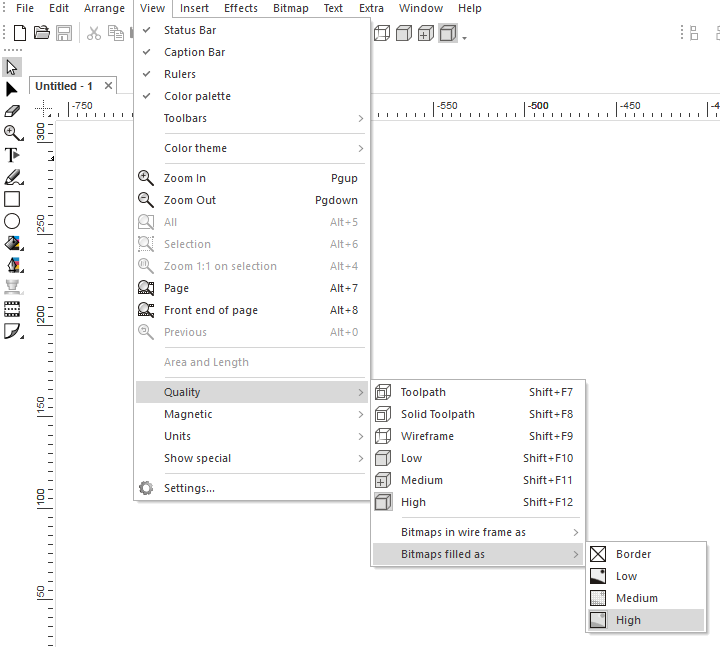
Select View > Quality > Bitmaps filled as > High to display imported images normally.
This setting controls how imported bitmap images are displayed on the EasySIGN worksheet.
1. Purpose and scope
This article explains what to do when an imported image is shown only as a frame with a cross in EasySIGN.
It covers:
• Recognizing the display issue.
• Changing the bitmap display quality setting.
• Confirming that the imported image is shown again.
This article is about worksheet display quality. It does not automatically indicate that the original image file is damaged.
2. Symptoms or customer problem
You may see one or more of the following symptoms:
• The imported image is shown as a frame.
• A cross is shown inside the image frame.
• The bitmap image contents are not visible on the worksheet.
• The image object can still be selected.
• The issue appears after importing or opening a worksheet with bitmap images.
3. Cause or background
EasySIGN has display quality settings that affect how objects are shown on the worksheet.
For bitmap images, the display setting can determine whether the bitmap is shown filled or displayed only as a simplified frame.
When the bitmap display quality is set too low for the current workflow, the imported image may appear as a frame with a cross.
4. Solution
Set the bitmap display quality to High.
Use:
• View → Quality → Bitmap filled as... → High
After changing this setting, the imported bitmap image should be displayed normally on the worksheet.
5. Step-by-step procedure
Step 1: Check that the image was imported
- Open the EasySIGN worksheet.
- Locate the image area on the worksheet.
- Click the frame with the cross.
- Check whether the image object can be selected.
- If the object can be selected, continue with the display quality setting.
Step 2: Change the bitmap display quality
- Go to View.
- Choose Quality.
- Choose Bitmap filled as....
- Select High.
Step 3: Check the worksheet display
- Look at the imported image again.
- Check whether the bitmap image contents are now visible.
- Zoom in or out if needed.
- Continue working when the image is displayed correctly.
6. Validation
The issue is solved when:
• The imported image is visible on the worksheet.
• The frame with a cross no longer replaces the bitmap image display.
• The image object can be viewed normally.
• The setting View → Quality → Bitmap filled as... → High has been applied.
7. Important notes and limitations
• This is a display quality setting for bitmap images on the worksheet.
• A frame with a cross does not automatically mean the image file is damaged.
• The setting affects how the image is shown in EasySIGN.
• If the image still does not display after setting bitmap quality to High, check whether the original image file can be opened outside EasySIGN.
• Very large bitmap images may still affect display performance.
• This article is about image display, not color correction, PDF export, printing, or cutting output.
8. Support checklist
Before escalating the case, check:
• Is the issue about an imported bitmap image?
• Is the image shown as a frame with a cross?
• Can the image object still be selected?
• Has the user applied View → Quality → Bitmap filled as... → High?
• Does the bitmap display normally after changing the setting?
• Can the original image file be opened outside EasySIGN if the issue remains?
• Is the issue display-related, or is it actually about export, print, or production output?
9. Conclusion
When an imported image is shown as a frame with a cross, change the bitmap display quality setting.
Use:
• View → Quality → Bitmap filled as... → High
This usually restores the normal display of imported bitmap images on the EasySIGN worksheet.
Was this article helpful?
That’s Great!
Thank you for your feedback
Sorry! We couldn't be helpful
Thank you for your feedback
Feedback sent
We appreciate your effort and will try to fix the article